年度归档: 2019 年

  • Django css Javascript 静态文件404 解决办法 图文教程

    Django css Javascript 静态文件404 解决办法 图文教程

    问题描述

    按照django的默认配置,django无法直接读取成功静态文件,网站的样式css和js无法成功读取,总是报404错误。Django 后台开发 为某个模型添加额外Javascript引用

    默认静态文件的相关配置为

    settings.py
    import os
    INSTALLED_APPS = [
        'django.contrib.admin',
        'django.contrib.auth',
        'django.contrib.contenttypes',
        'django.contrib.sessions',
        'django.contrib.messages',
        'django.contrib.staticfiles',
        'web',
    ]
    STATIC_URL = '/static/'
    

    最佳解决办法

    这是django中针对windows的静态/媒体/模板访问的工作解决方案

    import os.path
    STATIC_ROOT = ''
    STATIC_URL = '/static/'
    STATICFILES_DIRS = ( os.path.join('static'), )
    

    添加完毕后,可以正常访问静态资源。

    随后删掉添加的内容后依然可以访问静态资源,可能跟windows有关系。

  • Docker 下使用Centos系统镜像安装 uwsgi 运行 Python3 Django Nginx 反向代理

    Docker 下使用Centos系统镜像安装 uwsgi 运行 Python3 Django Nginx 反向代理

    需求描述

    最近老季在用Python3,Django写项目,这边具体记录一下在Docker下如何安装uwsgi来运行Django。

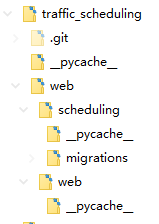
    注意:本项目代码已在宿主中生成过项目及文件,创建项目方法请移步:django入门教程 创建项目(Project)和应用(App)

    宿主Docker命令

    docker run -itd -v D:\wwwroot\:/data/wwwroot -p 8001:9000 --name juwsgi --link jnginx --link jmysql centos /usr/sbin/init

    这里我们只在linux系统中安装了 uwsgi 来运行python的web环境,mysql已单独运行在其他容器中。

    创建映射文件

    在 d:\wwwroot\traffic_scheduling 中创建 uwsgi.ini 的配置文件

    [uwsgi]
    # Django-related settings 
    # the base directory (full path) 
    chdir = /data/wwwroot/traffic_scheduling/web/
    # Django's wsgi file 
    module = web.wsgi 
    # the virtualenv (full path) 
    # home = /path/to/virtualenv 
    # process-related settings 
    master master = true 
    # maximum number of worker processes 
    processes = 2
    # the socket (use the full path to be safe) 
    # socket = /path/to/your/project/mysite.sock 
    socket = :9000
    # ... with appropriate permissions - may be needed 
    # chmod-socket = 664 
    # clear environment on exit 
    vacuum = true
    buffer-size = 32768
    pidfile = /tmp/uwsgi-IRM.pid   
    daemonize = /tmp/uwsgi-IRM.log
    

    uwsgi中的socket

    uwsgi监听的socket,可以为socket文件

    socket = /www/wwwroot/web/script/uwsgi.sock

    或 ip地址+端口号

    socket = :9000

    用nginx的时候就配socket , 直接运行的时候配 http
    指定IP端口 // 直接外部访问

    http-socket = :9000

    进入容器

    docker exec -it juwsgi /bin/bash

    在容器中运行命令

    1、在Centos容器中运行安装Python3

    CentOS上安装配置Python3.7 编译安装图文教程

    2、在容器中运行pip命令

    pip install --upgrade pip
    pip install django mysqlclient uwsgi
    ln -s /usr/local/bin/uwsgi /usr/bin/uwsgi

    测试你的Django项目

    现在,我们想让uWSGI做同样的事,但是返回一个Django站点而不是 test.py 模块。

    如果你还没有这样做,那么请确保你的 mysite 项目实际上正常工作,在终端中运行如下命令:

    python manage.py runserver 0.0.0.0:9000

    在浏览器中输入 http://127.0.0.1:9000 。

    如果正常,在终端中ctrl + c 取消,然后在终端中进入目录 /data/wwwroot/traffic_scheduling/web/ ,则使用uWSGI来运行它:

    uwsgi --http :9000 --module web.wsgi
    • module web.wsgi: 加载指定的wsgi模块

    将你的浏览器指向该服务器;如果站点出现,那么意味着uWSGI可以为你虚拟环境中的Django应用服务,而这个栈工作正常:

    the web client <-> uWSGI <-> Django
    

    现在,通常我们不会让浏览器直接与uWSGI通信。那是web服务器的工作,这是个穿针引线的活。

    配置Nginx容器

    Docker 安装 Nginx 映射本地文件 多虚拟主机 图文教程

    示例配置文件如下

    # mysite_nginx.conf
    # the upstream component nginx needs to connect to
    upstream django {
        # server unix:///path/to/your/mysite/mysite.sock; # for a file socket
        server 127.0.0.1:9000; # for a web port socket (we'll use this first)
    }
    # configuration of the server
    server {
        # the port your site will be served on
        listen      8001;
        # the domain name it will serve for
        server_name .example.com; # substitute your machine's IP address or FQDN
        charset     utf-8;
        # max upload size
        client_max_body_size 75M;   # adjust to taste
        location /static {
            root /data/wwwroot/traffic_scheduling/web/; # your Django project's static files - amend as required
        }
        # Finally, send all non-media requests to the Django server.
        location / {
            uwsgi_pass  django;
            include     uwsgi_params; # the uwsgi_params file you installed
        }
    }

    Centos下请关闭SELinux,否则会出现 403 forbidden (13: Permission denied) 。关闭SELinux的两种方法

    部署静态文件

    在运行nginx之前,你必须收集所有的Django静态文件到静态文件夹里。首先,必须编辑web/settings.py,添加:

    STATIC_ROOT = os.path.join(BASE_DIR, "static")

    然后运行

    python manage.py collectstatic
    

    基本的nginx测试

    重启nginx:

    /etc/init.d/nginx restart

    要检查是否正确的提供了媒体文件服务,添加一个名为 media.png 的图像到 /data/wwwroot/traffic_scheduling/web/static 目录中,然后访问http://example.com:8000/media/media.png – 如果这能正常工作,那么至少你知道nginx正在正确的提供文件服务。

    值得不仅仅是重启nginx,而是实际停止然后再次启动它,这将会通知是否有问题,以及问题在哪里。

    在宿主中查看是否可以成功运行

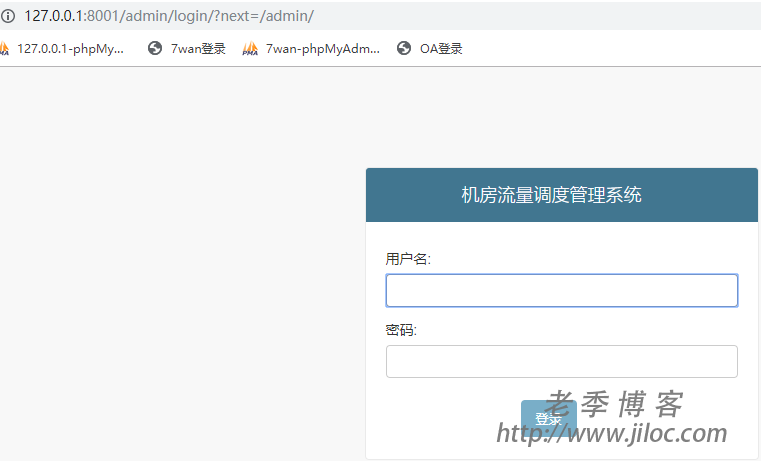
    在浏览器中输入 http://127.0.0.1:8001 查看是否运行成功。

  • Django运行访问项目出现的问题:DisallowedHost at / Invalid HTTP_HOST header

    Django运行访问项目出现的问题:DisallowedHost at / Invalid HTTP_HOST header

    问题描述

    Django运行访问项目出现的问题:DisallowedHost at / Invalid HTTP_HOST header:

    DisallowedHost at /
    Invalid HTTP_HOST header: ‘10.211.55.6:8000’. You may need to add u’10.211.55.6′ to ALLOWED_HOSTS.

    Request Method: GET
    Request URL: http://10.211.55.6:8000/
    Django Version: 1.10.4
    Exception Type: DisallowedHost
    Exception Value:
    Invalid HTTP_HOST header: ‘10.211.55.6:8000’. You may need to add u’10.211.55.6′ to ALLOWED_HOSTS.
    Exception Location: /usr/lib/python2.7/site-packages/django/http/request.py in get_host, line 113
    Python Executable: /usr/bin/python
    Python Version:

    1,以上时我访问请求的时候出现的,原因在于Django框架中的创建的一个项目的时候,

    2,跑下这个命令:python manage.py runserver 10.211.55.5:8000

    3,然后在我本机的浏览器中写入上述IP和端口请求过去:http://10.211.55.6:8000

    4,于是就出现了最上面的那个问题;

    5,于是就去django-admin.py startproject project-name创建的项目中去修改 setting.py 文件:

    ALLOWED_HOSTS = ['*']  #在这里请求的host添加了*

    6,于是就成功的访问到了Django的项目了;

  • Python Docker Centos  Django 出现 OSError: mysql_config not found 解决办法

    Python Docker Centos Django 出现 OSError: mysql_config not found 解决办法

    问题描述

    通过 pip install mysqlclient 时报出了

    OSError: mysql_config not found错误,如图:

    解决办法

    原因是linux需要mysql相关的一些依赖包

    yum install mysql-devel gcc gcc-devel python-devel -y

    安装完毕后就可以正常pip install mysqlclient了

  • django入门教程 创建项目(Project)和应用(App)

    django入门教程 创建项目(Project)和应用(App)

    创建项目

    打开Anaconda Prompt,cd 到一个你想放置你代码的目录,然后运行以下命令:

    django-admin startproject jsite

    让我们看看 startproject 创建了些什么:

    jsite/
        manage.py
        jsite/
            __init__.py
            settings.py
            urls.py
            wsgi.py

    创建数据库

    打开PyCharm,新建project,目录输入刚创建的jsite,忽略非空目录提示,直接点Yes。打开Terminal窗口,运行以下命令:

    python manage.py migrate

    会看到类似下面的显示:

    D:\jsite>python manage.py migrate
    Operations to perform:
      Apply all migrations: admin, auth, contenttypes, sessions
    Running migrations:
      Applying contenttypes.0001_initial... OK
      Applying auth.0001_initial... OK
      Applying admin.0001_initial... OK
      Applying admin.0002_logentry_remove_auto_add... OK
      Applying admin.0003_logentry_add_action_flag_choices... OK
      Applying contenttypes.0002_remove_content_type_name... OK
      Applying auth.0002_alter_permission_name_max_length... OK
      Applying auth.0003_alter_user_email_max_length... OK
      Applying auth.0004_alter_user_username_opts... OK
      Applying auth.0005_alter_user_last_login_null... OK
      Applying auth.0006_require_contenttypes_0002... OK
      Applying auth.0007_alter_validators_add_error_messages... OK
      Applying auth.0008_alter_user_username_max_length... OK
      Applying auth.0009_alter_user_last_name_max_length... OK
      Applying sessions.0001_initial... OK
    

    安装项目

    在 settings.py 的 INSTALLED_APPS 中添加项目名 jsite (需与 apps.py 中的名称一致)


    运行用于开发的简易服务器

    Terminal窗口中运行以下命令:

    python manage.py runserver

    会看到类似下面的显示:

    D:\jsite>python manage.py runserver
    Performing system checks...
    System check identified no issues (0 silenced).
    October 24, 2018 - 21:53:21
    Django version 2.1.2, using settings 'jsite.settings'
    Starting development server at http://127.0.0.1:8000/
    Quit the server with CTRL-BREAK.
    

    浏览器打开http://127.0.0.1:8000/,看到“The install worked successfully! Congratulations!”字样说明成功。千万不要 将这个服务器用于和生产环境相关的任何地方。这个服务器只是为了开发而设计的。

    会自动重新加载的服务器 runserver

    用于开发的服务器在需要的情况下会对每一次的访问请求重新载入一遍 Python 代码。所以你不需要为了让修改的代码生效而频繁的重新启动服务器。然而,一些动作,比如添加新文件,将不会触发自动重新加载,这时你得自己手动重启服务器。


    创建投票应用

    请确定你现在处于 manage.py 所在的目录下,然后运行这行命令来创建一个应用:

    python manage.py startapp polls

    这将会创建一个 polls 目录,它的目录结构大致如下:

    polls/
        __init__.py
        admin.py
        apps.py
        migrations/
            __init__.py
        models.py
        tests.py
        views.py
  • python django 中 如何修改admin首页和title

    python django 中 如何修改admin首页和title

    前言

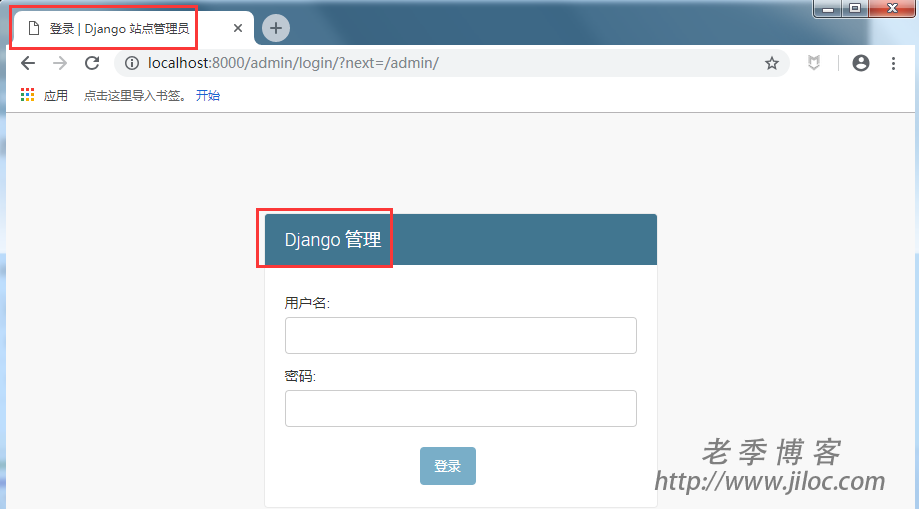
    django的admin首页默认显示的”Django 管理”,title显示的是”Django 站点管理员”,这里的文案内容可以修改成自己项目的后台页面内容

    首页和title

    django后台首页点开,修改成项目对应的文案, 修改如下图2个地方

    admin.py修改

    在admin.py下重写admin.site里面的属性值

    • site_header 设置页面上的内容
    • site_title 页面左上角的title内容
    • index_title 后台管理
    # admin.py
    admin.site.site_header = 'xx 项目管理系统'
    admin.site.site_title = '登录系统后台'
    admin.site.index_title = '后台管理'
  • python  models.py 类里面的__str__ 和__unicode__作用

    python models.py 类里面的__str__ 和__unicode__作用

    前言

    最近学django,看到不少教程里面models.py里面建表,写一个类的时候,习惯上加个__str__ ,开始不太明白,简单的实践后才知道是为了美化类实例的打印内容。

    python3 里面用__str__ ,python2里面用__unicode__

    写个类在 models.py 中添加

    class ComputerRoom(models.Model):
        name = models.CharField(max_length=256,verbose_name = "名称")
        abbr = models.CharField(max_length=128, blank=True, null=True,verbose_name = "缩写")
        type = models.CharField(max_length=256)
        exist_buyout = models.IntegerField(blank=True, null=True)
        cmd_buyout = models.CharField(max_length=256, blank=True, null=True)
        exist_95 = models.IntegerField(blank=True, null=True)
        cmd_95 = models.CharField(max_length=256, blank=True, null=True)
        maximum = models.IntegerField(blank=True, null=True)
        lower_limit = models.IntegerField(blank=True, null=True)
        upper_limit = models.IntegerField(blank=True, null=True)
        weights = models.IntegerField(blank=True, null=True)
        host = models.CharField(max_length=256, blank=True, null=True)
        username = models.CharField(max_length=256, blank=True, null=True)
        password = models.CharField(max_length=256, blank=True, null=True)
        port = models.IntegerField(blank=True, null=True)
        maximum_95 = models.BigIntegerField(blank=True, null=True)
        lower_limit_95 = models.BigIntegerField(blank=True, null=True)
        upper_limit_95 = models.BigIntegerField(blank=True, null=True)
        update_time = models.DateTimeField(auto_now=True)
        
        # def __unicode__(self):
        #     return self.name
        def __str__(self):
            return self.name
        class Meta:
            managed = False
            db_table = 'computer_room'
            verbose_name_plural = "机房管理"

    这里如果我们使用 __unicode__ ,在列表中可以正常显示,但是在 添加/修改 页面显示 Object 对象了。

    如果使用 __str__ ,则显示正常了。

  • Python3 如何把Django后台设置成中文 图文教程

    Python3 如何把Django后台设置成中文 图文教程

    最近在用Python写一个项目,下面记录一下如何把Django的后台设置成中文。

    在项目的 settings.py 中配置:

    LANGUAGE_CODE = 'zh-hans'
    TIME_ZONE = 'Asia/Shanghai'

    后台即可显示为中文。

  • Django根据数据库反向生成models

    Django根据数据库反向生成models

    创建一个项目,修改settings.py文件,在settings里面设置你要连接的数据库类型和连接名称,地址之类,和创建新项目的时候一致

    自动生成models模型文件

    python manage.py inspectdb

    把模型文件导入到app中

    创建app

    django-admin.py startapp app

    将模型导入创建的app中去

    python manage.py inspectdb > app/models.py
    #创建app
    django-admin.py startapp app
    #将模型导入创建的app中去
    python manage.py inspectdb > app/models.py

    至此大功告成

  • Docker.For.Win – Install fails on installationmanifest.json

    Docker.For.Win – Install fails on installationmanifest.json

    问题描述

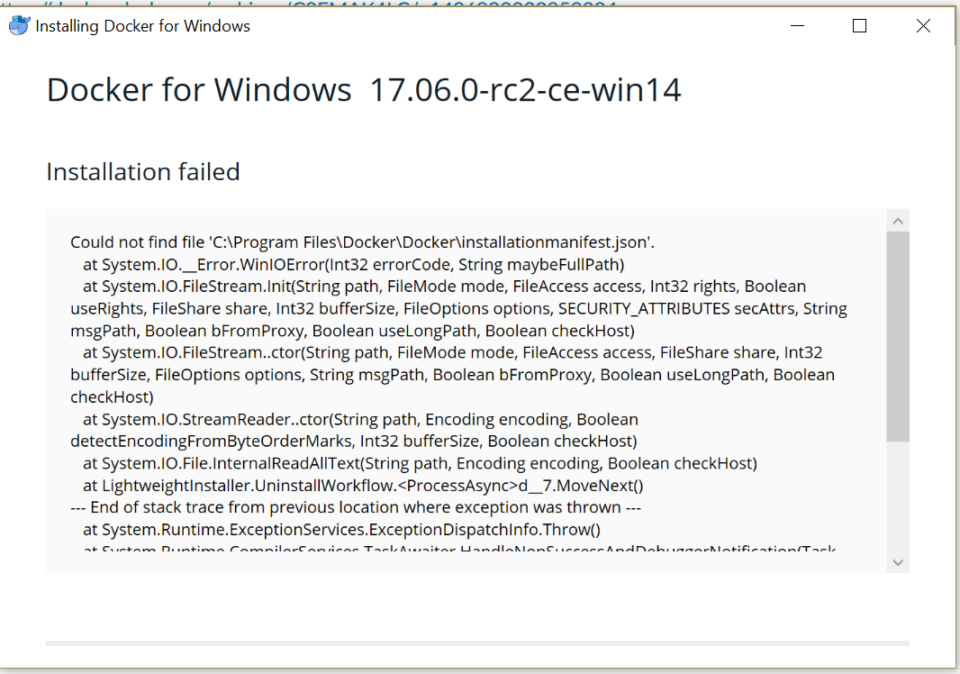
    Docker升级出现 Installation Failed:

        Text from error:
        Installing Docker for Windows 
        Docker for Windows 
        Installation failed 
        x 
        17.06.O-rc2-ce-win14 
        Could not find file 'C:\Program Files\Docker\Docker\installationmanifest.json'. 
        at System.lO._Error.WinlOError(lnt32 errorCode, String maybeFullPath) 
        at System.lO.FileStream.lnit(String path, FileMode mode, FileAccess access, Int32 rights, Boolean 
        useRights, FileShare share, Int32 bufferSize, FileOptions options, SECURITY_ATTRIBUTES secAttrs, String 
        msgPath, Boolean bFromProxy, Boolean useLongPath, Boolean checkHost) 
        at System.lO.FileStream..ctor(String path, FileMode mode, FileAccess access, FileShare share, Int32 
        bufferSize, FileOptions options, String msgPath, Boolean bFromProxy, Boolean useLongPath, Boolean 
        checkHost) 
        at System.lO.StreamReader..ctor(String path, Encoding encoding, Boolean 
        detectEncodingFromByteOrderMarks, Int32 bufferSize, Boolean checkHost) 
        at System.lO.File.lnternalReadAllText(String path, Encoding encoding, Boolean checkHost) 
        at Lightweightlnstaller.UninstallWorkflow.<ProcessAsync>d_7.MoveNext() 
        End of stack trace from previous location where exception was thrown 
        at System. Runtime. ExceptionServices. Exception Dispatchl nfo. Throw()

    解决办法

    1. Kill the installer process if it’s still running.
    2. Run Regedit.
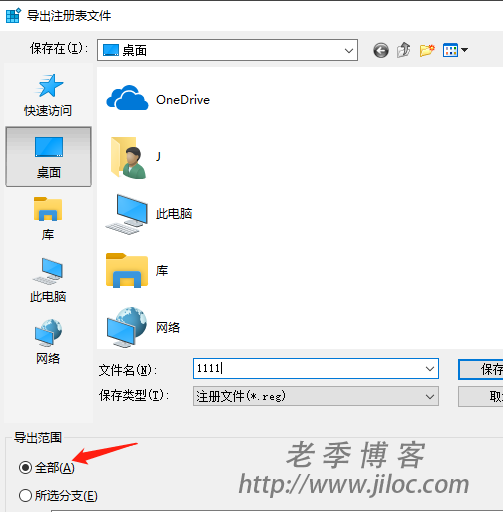
    3. Run a quick backup of the registry by selecting File > Export (It is recommended that you set the export range to All.)
    4. Navigate to Computer\HKEY_LOCAL_MACHINE\SOFTWARE\Microsoft\Windows\CurrentVersion\Uninstall
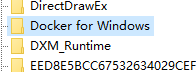
    5. If there is a Docker for Windows entry, delete key and all subkeys.
    6. Relaunch the installer, and you should no longer be prompted to update. The installer should proceed as a fresh install from this point.
    1. 运

    1、关闭所有的安装进程

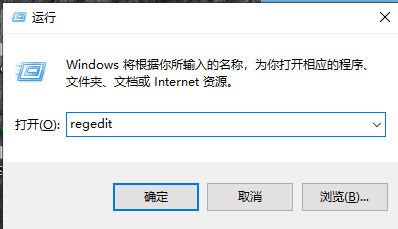
    2、运行注册表(WIN+r), 在运行中输入:regedit

    3、打开注册表 Computer\HKEY_LOCAL_MACHINE\SOFTWARE\Microsoft\Windows\CurrentVersion\Uninstall

    4、找到 Docker for Windows

    5、将右侧的支点全部删除。

    可以将Docker恢复到最初的状态,然后可以重新安装或升级。

  • Docker 安装 memcached 出现 can’t run as root without the -u switch

    Docker 安装 memcached 出现 can’t run as root without the -u switch

    出现问题

    can’t run as root without the -u switch

    解决办法

    docker run -d -p 11211:11211 --name jmemcached memcached -u root

    -u root 使用 root来执行,docker容器就不会自动退出。否则可能会出现刚启动容器就会自动退出。

  • Docker 出现 This error may also indicate that the docker daemon is not running.

    Docker 出现 This error may also indicate that the docker daemon is not running.

    问题描述

    Docker使用过程中出现错误

    error during connect: Get http://%2F%2F.%2Fpipe%2Fdocker_engine/v1.39/containers/json?all=1: open //./pipe/docker_engine: The system cannot find the file specified. In the default daemon configuration on Windows, the docker client must be run elevated to connect. This error may also indicate that the docker daemon is not running.

    这个问题好坑,找了好久都没有解决办法,卸载重装以后还是不行。

    注:卸载后将会删除所有镜像及虚拟机容器。

    解决办法

    在 cmd.exe 中执行,开启守护进程即可。

    cd "C:\Program Files\Docker\Docker"
    ./DockerCli.exe -SwitchDaemon
WeChat
↑